Learning Agentic Design Systems
How to embed AI into workflows when working with design systems.

TL; DR
This article explores my learning process in scaffolding an agentic design system IDE workspace using AI skills, MCPs and Figma. With Google’s Antigravity I did setup a mix of workflows in order to generate code from design as well as design from code.
This two-way workflow allowed me to create a documentation site, a code repository as well as a Figma component library with variables in sync with tokens.
Using skills embedded in the workspace I also generated metadata files for AI to have guidelines, rules and the appropriate context for how to use the system.
The rise of Agentic Design Systems
I have been reading a lot about new ways of building and using design systems with AI. During my weekly talks with other design systems experts in the Redwoods Community I could see that a lot of people are trying things out, new tools are coming out almost daily and it seems impossible to follow every new tool and trend.
During my readings I stumbled upon the series of articles from Cristian Morales Achiardi where he talks about how he built a fully agentic design system.
At the same time I was following TJ Pitre’s Figma Console MCP project and installed it in Antigravity. I started experimenting with running commands from Antigravity to Figma and generating components, variables from different files.
During this phase of learning the more tactical aspects of agentic design systems I was also reading the latest articles of Murphy Trueman on her blog where she has been tackling some of more nuanced and strategic topics regarding the integration of AI in design systems and in organisations in general.
What was clear to me once I started playing around with this is that you can’t hope to vibe code your products if you want to use a design system, you need to move to specs design.
I was intrigued to try using the Claude skills from Cristian and the Figma Console MCP from TJ and see what’s possible when creating a project where an agent can both code components and design in Figma.
Setting up the agentic workspace
I started by setting up the Figma Console MCP in Antigravity, this ensured Gemini had read/write access to my Figma file.
Antigravity is an agentic IDE and allows you to run and orchestrate multiple agents simultaneously. You can open different workspaces, run multiple conversations simultaneously in each workspace as well as using the “playground” feature to try things as one-offs.
Even though Antigravity is a Google product it also allows to use Claude Code as an extension the same way Visual Studio does (Antigravity is a fork of VS).
I wanted to start experimenting with a white label setup in order to create a generic project I could use (and reuse) as a setup for an agentic design system project. Since I needed some components to work with I imported some from shadcn: button, select, accordion, field, input, label and separator.
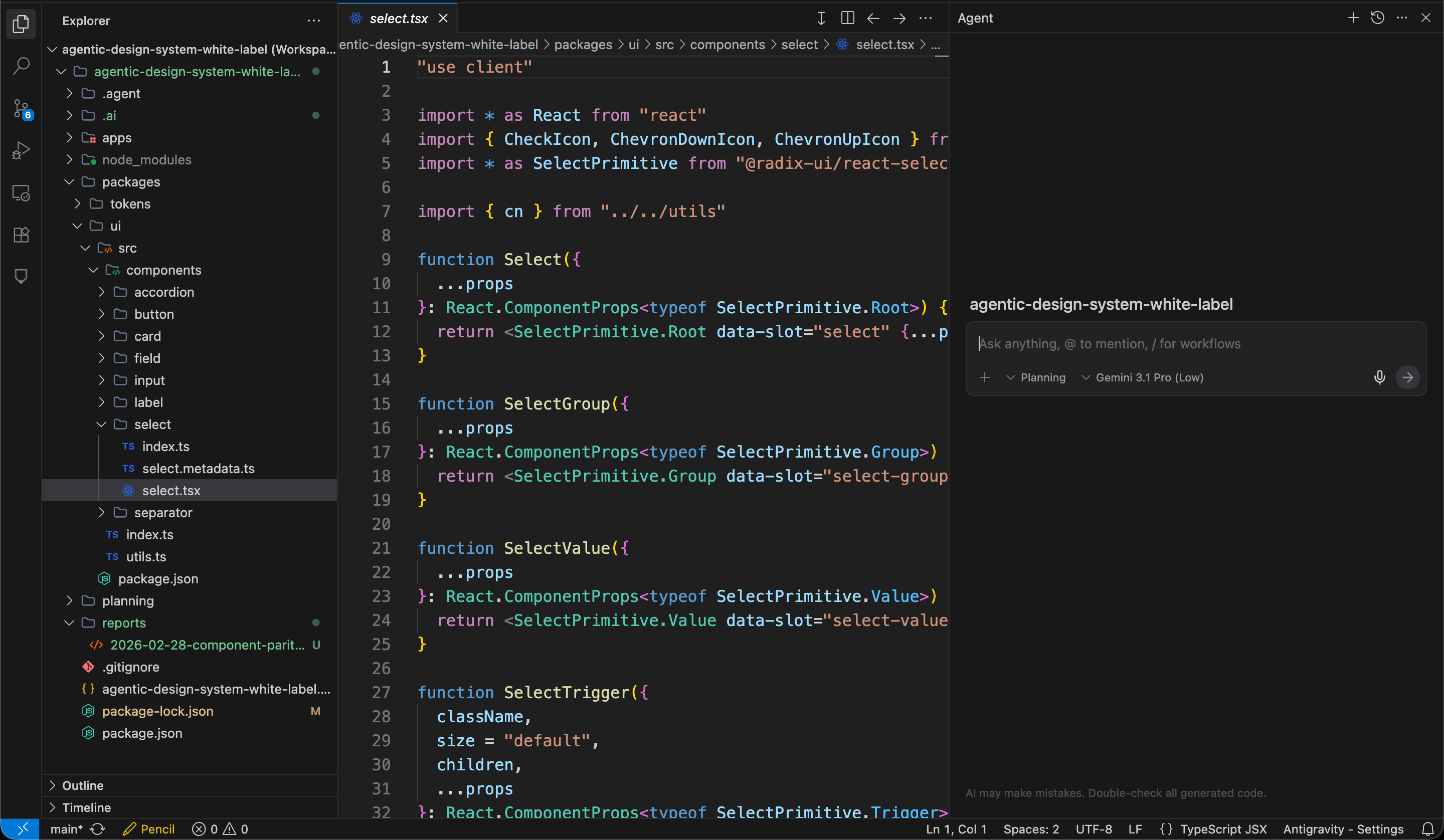
The project setup in Antigravity: workspace explorer, file viewer and agent all in one view
The code-to-design workflow
Once I had a bunch of components in my project I wanted to test if Figma Console MCP could help me recreate them in Figma. First, I asked Gemini to create variables for the tokens used by the currently imported components and did some tweaks to personalize them a bit. My goal was to see how I can import a component from code and adapt it using an existing set of brand tokens.
I asked Gemini to generate the button component first from code to Figma and later proceeded to create all other components. Using the Figma Console MCP the AI was able to build Figma components in little time. Sometimes the Figma components needed some tweaks, but with a second or third prompt I was able to get something perfectly working. By importing the other components I noticed that the result takes you 60-90% there, depending on the complexity of the component and the quality of your prompt.
For a designer it is important to understand how the component is actually built and its API when trying this workflow. It is also important to know how to review and iterate on the Figma component itself since the AI does not always build things perfectly.
This showed me how easy it is to generate a Figma component if you have already code or if you import code from some existing repository (shadcn in my case). Figma Console MCP can set the correct variables to make sure that the component is aligned with the tokens used by the code. It has to be said that since AI is not perfect it is imperative to have a designer who’s proficient with Figma to review and double check the output of the AI. In particular being able to review and correct auto layouts, variables, props and slots is really important and a certain understanding of how the component is built in code is also needed.
Regarding potential drift between design and code we will see later how to review and automate the parity process.
The design-to-code workflow
Next I wanted to try the opposite workflow, going from design to code. The idea here is to be able to generate usable code from a design in order to prototype or to help engineers having a starting point for the actual implementation of a component.
I used the card component for my experiment. Even though shadcn offers a card component I decided instead to try to create one myself then get Gemini to code it for me. One part of my experiment was to brainstorm the design together with the AI.
The tool I tried for brainstorming was Pencil which comes as an integration to Antigravity and allows you to design directly in your IDE. I brainstormed some designs by asking Gemini to generate some sketches in Pencil. Once I selected one design I asked the AI to use Figma Console MCP to convert the Pencil design into a Figma component using the correct variables.
From the Figma component I generated a React component, created metadata files for both documentation and AI and then experimented with using existing components inside my newly created card. The process worked great and showed me the potential of generating code from design which can be used as a base for designers to collaborate with engineering by producing over not only designs but also some working code.
Documentation and metadata
One of the tools of Figma Console MCP is the figma_generate_component_doc command which generates human readable documentation for your components using Figma as the source of truth. While this can be problematic if there is drift between design and code it can definitely be a great source for having your documentation website be fully automated and populated by an agent leveraging the MCP and helping you define the markdown file to populate the component landing page for example.
Another tool I tried to generate metadata was Cristian Morales ai component metadata skill. This skill analyzes your design system components and generates structured, AI-readable metadata. This metadata guides AI tools on exactly when, where, and how to use your components correctly when generating UI.
The other skill I tried from Cristian was the codebase-index to stop AI inventing random raw HTML or inline styles and allow it to pull your exact design tokens and components by knowing exactly where they are.
It was interesting to notice the importance of generating metadata for both humans and machines: those two users need a different kind of metadata. You as a system designer are no longer just designing a component, you are designing the rules with which AI is allowed to use the component.
This means that as a design system maintainer you need to learn how to encode governance using structured data. Learning how to take advantage of skills to help you doing that is how you can ensure that the data is built consistently across all your components.
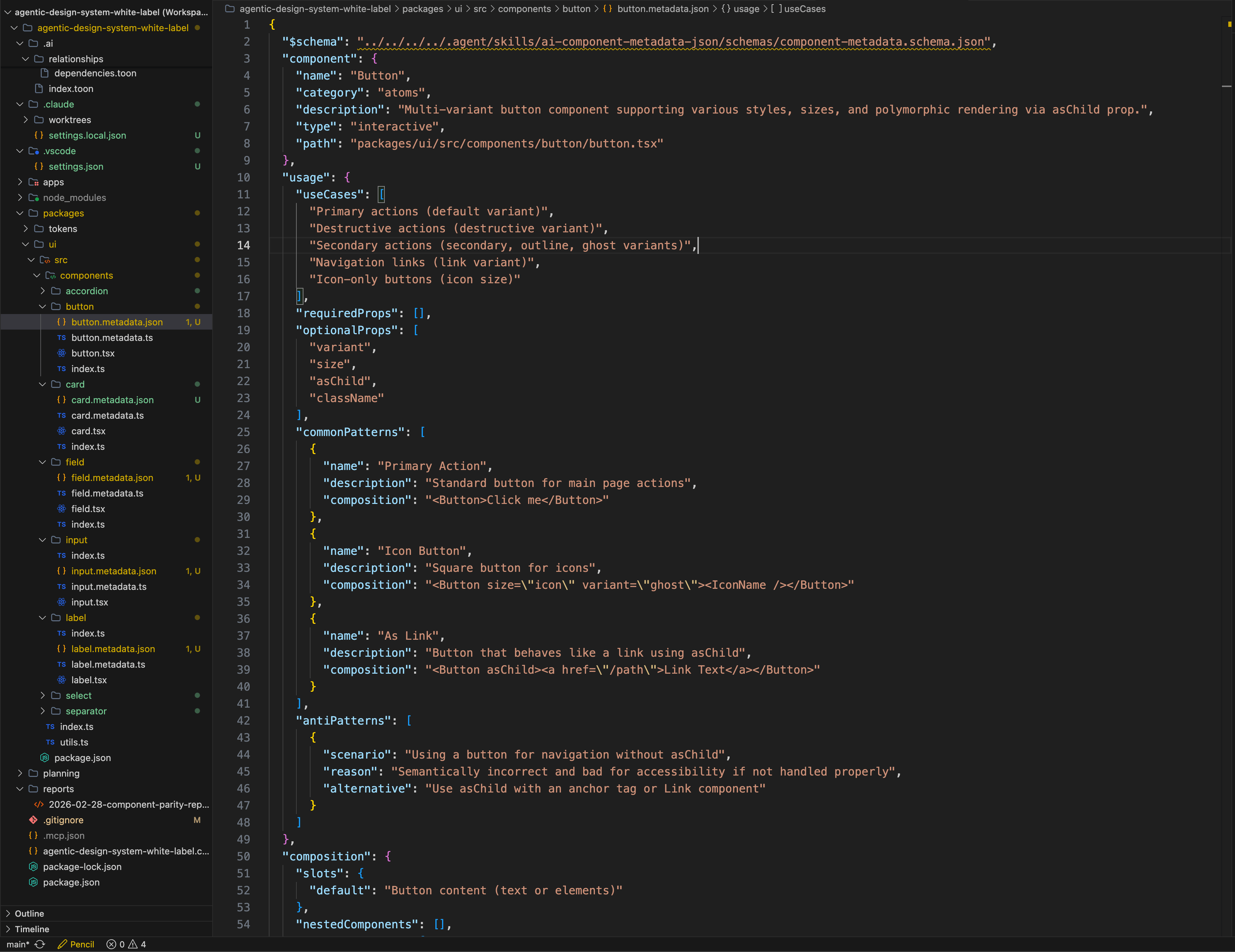
An example of generated metadata in JSON format
Design parity report
Once all components were created in both code and Figma I wanted to test the figma_check_design_parity tool in Figma Console MCP to check the alignment between what was created in Figma and what was present in the codebase.
This tool gives a great overview of the health state of the components and help reduce drift that might have occurred. In my case I chose to save my report in a dedicated “reports” folder in my workspace as an HTML dashboard which can then be used as an internal tool to track the health status of the design system’s code-design alignment.
This is a great workflow to analyze and correct drift that happens between design and code, it shows where problems are and AI can then correct misalignment in either code and Figma thanks to the MCP connections.
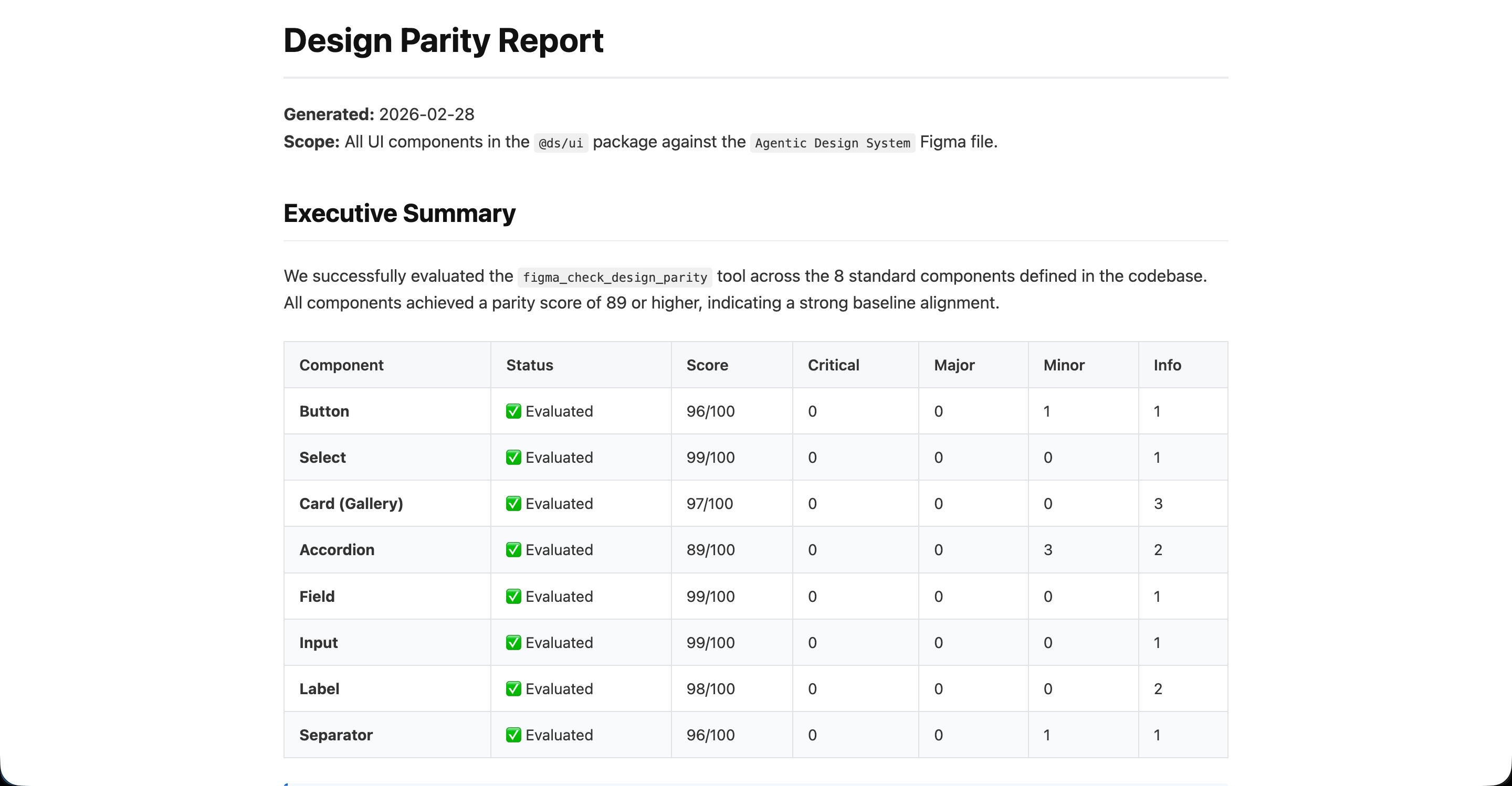
The parity report from Figma Console MCP saved as HTML dashboard
Conclusion
Building this setup has been an invaluable learning experience and also made me realize that the way I worked in for the last 10 years is about to change.
First of all, in order to automate UI generation you need a solid design system component library, this is not about vibe-coding some idea in Figma Make using some markdown infused prompt. Companies now want to automate workflows and generate consistent and on-brand outputs with AI. The only way you can generate consistent and high quality outputs is by giving AI agents the right context.
The context is what the design system has to define and it has to be on point, precise, structured, coherent and machine readable. You basically need to encode governance through your agentic design system and this is a very new set of skills.
Regarding context, there are big differences between working with a tool like Figma Make and a workspace project like the one I setup in Antigravity.
First of all, Figma Make does not have the full access to your design system the way a structured setup does and a big guidelines.md isn’t going to perform as well as a combo of skills and metadata files able to leverage Figma Console MCP across multiple files.
You can ask the AI to cross reference documentation, code and design and use skills to automate complicated tasks. Those skills you create once and then once saved will be used by the AI during future iterations as part of your setup. This setup also allows a designer to create pull requests and commit changes after they modified something in Figma. Overall this brings designers much closer to work with the actual code of the design system which is a good thing. The work shifts from drawing pretty pictures in Figma to instruct an agent to build design and code that is following your design system rules.
This is a big shift in how a designer might work in the future. Context generation, understanding how patterns, templates and flows work and being able to encode such rules are going to be much needed skills for new hires at companies that are serious about AI integration. Design systems are the foundational structure that AI tools will need to use in order to produce quality outputs consistent with your brand.
Design system teams will need to move from documenting guidelines on a website to encode design decisions and governance using metadata, skills and building structures and workflows to automate linting, support, quality reviews.
Product designers on the other hand will have to get more comfortable to design with code, understanding the medium more closely and getting out of the mindset of drawing Figma frames and sending them to engineering.
Building with agentic design systems require new skills and a new mindset but the goal is still the same: help teams create digital products with great user experience while following brand standards.
I’ll continue experimenting with this setup and in particular with page templates and user journeys. Stay tuned!
Learning Agentic Design Systems
How to embed AI into workflows when working with design systems.
TL; DR
This article explores my learning process in scaffolding an agentic design system IDE workspace using AI skills, MCPs and Figma. With Google’s Antigravity I did setup a mix of workflows in order to generate code from design as well as design from code.
This two-way workflow allowed me to create a documentation site, a code repository as well as a Figma component library with variables in sync with tokens.
Using skills embedded in the workspace I also generated metadata files for AI to have guidelines, rules and the appropriate context for how to use the system.
The rise of Agentic Design Systems
I have been reading a lot about new ways of building and using design systems with AI. During my weekly talks with other design systems experts in the Redwoods Community I could see that a lot of people are trying things out, new tools are coming out almost daily and it seems impossible to follow every new tool and trend.
During my readings I stumbled upon the series of articles from Cristian Morales Achiardi where he talks about how he built a fully agentic design system.
At the same time I was following TJ Pitre’s Figma Console MCP project and installed it in Antigravity. I started experimenting with running commands from Antigravity to Figma and generating components, variables from different files.
During this phase of learning the more tactical aspects of agentic design systems I was also reading the latest articles of Murphy Trueman on her blog where she has been tackling some of more nuanced and strategic topics regarding the integration of AI in design systems and in organisations in general.
What was clear to me once I started playing around with this is that you can’t hope to vibe code your products if you want to use a design system, you need to move to specs design.
I was intrigued to try using the Claude skills from Cristian and the Figma Console MCP from TJ and see what’s possible when creating a project where an agent can both code components and design in Figma.
Setting up the agentic workspace
I started by setting up the Figma Console MCP in Antigravity, this ensured Gemini had read/write access to my Figma file.
Antigravity is an agentic IDE and allows you to run and orchestrate multiple agents simultaneously. You can open different workspaces, run multiple conversations simultaneously in each workspace as well as using the “playground” feature to try things as one-offs.
Even though Antigravity is a Google product it also allows to use Claude Code as an extension the same way Visual Studio does (Antigravity is a fork of VS).
I wanted to start experimenting with a white label setup in order to create a generic project I could use (and reuse) as a setup for an agentic design system project. Since I needed some components to work with I imported some from shadcn: button, select, accordion, field, input, label and separator.
The project setup in Antigravity: workspace explorer, file viewer and agent all in one view
The code-to-design workflow
Once I had a bunch of components in my project I wanted to test if Figma Console MCP could help me recreate them in Figma. First, I asked Gemini to create variables for the tokens used by the currently imported components and did some tweaks to personalize them a bit. My goal was to see how I can import a component from code and adapt it using an existing set of brand tokens.
I asked Gemini to generate the button component first from code to Figma and later proceeded to create all other components. Using the Figma Console MCP the AI was able to build Figma components in little time. Sometimes the Figma components needed some tweaks, but with a second or third prompt I was able to get something perfectly working. By importing the other components I noticed that the result takes you 60-90% there, depending on the complexity of the component and the quality of your prompt.
For a designer it is important to understand how the component is actually built and its API when trying this workflow. It is also important to know how to review and iterate on the Figma component itself since the AI does not always build things perfectly.
This showed me how easy it is to generate a Figma component if you have already code or if you import code from some existing repository (shadcn in my case). Figma Console MCP can set the correct variables to make sure that the component is aligned with the tokens used by the code. It has to be said that since AI is not perfect it is imperative to have a designer who’s proficient with Figma to review and double check the output of the AI. In particular being able to review and correct auto layouts, variables, props and slots is really important and a certain understanding of how the component is built in code is also needed.
Regarding potential drift between design and code we will see later how to review and automate the parity process.
The design-to-code workflow
Next I wanted to try the opposite workflow, going from design to code. The idea here is to be able to generate usable code from a design in order to prototype or to help engineers having a starting point for the actual implementation of a component.
I used the card component for my experiment. Even though shadcn offers a card component I decided instead to try to create one myself then get Gemini to code it for me. One part of my experiment was to brainstorm the design together with the AI.
The tool I tried for brainstorming was Pencil which comes as an integration to Antigravity and allows you to design directly in your IDE. I brainstormed some designs by asking Gemini to generate some sketches in Pencil. Once I selected one design I asked the AI to use Figma Console MCP to convert the Pencil design into a Figma component using the correct variables.
From the Figma component I generated a React component, created metadata files for both documentation and AI and then experimented with using existing components inside my newly created card. The process worked great and showed me the potential of generating code from design which can be used as a base for designers to collaborate with engineering by producing over not only designs but also some working code.
Documentation and metadata
One of the tools of Figma Console MCP is the figma_generate_component_doc command which generates human readable documentation for your components using Figma as the source of truth. While this can be problematic if there is drift between design and code it can definitely be a great source for having your documentation website be fully automated and populated by an agent leveraging the MCP and helping you define the markdown file to populate the component landing page for example.
Another tool I tried to generate metadata was Cristian Morales ai component metadata skill. This skill analyzes your design system components and generates structured, AI-readable metadata. This metadata guides AI tools on exactly when, where, and how to use your components correctly when generating UI.
The other skill I tried from Cristian was the codebase-index to stop AI inventing random raw HTML or inline styles and allow it to pull your exact design tokens and components by knowing exactly where they are.
It was interesting to notice the importance of generating metadata for both humans and machines: those two users need a different kind of metadata. You as a system designer are no longer just designing a component, you are designing the rules with which AI is allowed to use the component.
This means that as a design system maintainer you need to learn how to encode governance using structured data. Learning how to take advantage of skills to help you doing that is how you can ensure that the data is built consistently across all your components.
An example of generated metadata in JSON format
Design parity report
Once all components were created in both code and Figma I wanted to test the figma_check_design_parity tool in Figma Console MCP to check the alignment between what was created in Figma and what was present in the codebase.
This tool gives a great overview of the health state of the components and help reduce drift that might have occurred. In my case I chose to save my report in a dedicated “reports” folder in my workspace as an HTML dashboard which can then be used as an internal tool to track the health status of the design system’s code-design alignment.
This is a great workflow to analyze and correct drift that happens between design and code, it shows where problems are and AI can then correct misalignment in either code and Figma thanks to the MCP connections.
The parity report from Figma Console MCP saved as HTML dashboard
Conclusion
Building this setup has been an invaluable learning experience and also made me realize that the way I worked in for the last 10 years is about to change.
First of all, in order to automate UI generation you need a solid design system component library, this is not about vibe-coding some idea in Figma Make using some markdown infused prompt. Companies now want to automate workflows and generate consistent and on-brand outputs with AI. The only way you can generate consistent and high quality outputs is by giving AI agents the right context.
The context is what the design system has to define and it has to be on point, precise, structured, coherent and machine readable. You basically need to encode governance through your agentic design system and this is a very new set of skills.
Regarding context, there are big differences between working with a tool like Figma Make and a workspace project like the one I setup in Antigravity.
First of all, Figma Make does not have the full access to your design system the way a structured setup does and a big guidelines.md isn’t going to perform as well as a combo of skills and metadata files able to leverage Figma Console MCP across multiple files.
You can ask the AI to cross reference documentation, code and design and use skills to automate complicated tasks. Those skills you create once and then once saved will be used by the AI during future iterations as part of your setup. This setup also allows a designer to create pull requests and commit changes after they modified something in Figma. Overall this brings designers much closer to work with the actual code of the design system which is a good thing. The work shifts from drawing pretty pictures in Figma to instruct an agent to build design and code that is following your design system rules.
This is a big shift in how a designer might work in the future. Context generation, understanding how patterns, templates and flows work and being able to encode such rules are going to be much needed skills for new hires at companies that are serious about AI integration. Design systems are the foundational structure that AI tools will need to use in order to produce quality outputs consistent with your brand.
Design system teams will need to move from documenting guidelines on a website to encode design decisions and governance using metadata, skills and building structures and workflows to automate linting, support, quality reviews.
Product designers on the other hand will have to get more comfortable to design with code, understanding the medium more closely and getting out of the mindset of drawing Figma frames and sending them to engineering.
Building with agentic design systems require new skills and a new mindset but the goal is still the same: help teams create digital products with great user experience while following brand standards.
I’ll continue experimenting with this setup and in particular with page templates and user journeys. Stay tuned!
Learning Agentic Design Systems
How to embed AI into workflows when working with design systems.
TL; DR
This article explores my learning process in scaffolding an agentic design system IDE workspace using AI skills, MCPs and Figma. With Google’s Antigravity I did setup a mix of workflows in order to generate code from design as well as design from code.
This two-way workflow allowed me to create a documentation site, a code repository as well as a Figma component library with variables in sync with tokens.
Using skills embedded in the workspace I also generated metadata files for AI to have guidelines, rules and the appropriate context for how to use the system.
The rise of Agentic Design Systems
I have been reading a lot about new ways of building and using design systems with AI. During my weekly talks with other design systems experts in the Redwoods Community I could see that a lot of people are trying things out, new tools are coming out almost daily and it seems impossible to follow every new tool and trend.
During my readings I stumbled upon the series of articles from Cristian Morales Achiardi where he talks about how he built a fully agentic design system.
At the same time I was following TJ Pitre’s Figma Console MCP project and installed it in Antigravity. I started experimenting with running commands from Antigravity to Figma and generating components, variables from different files.
During this phase of learning the more tactical aspects of agentic design systems I was also reading the latest articles of Murphy Trueman on her blog where she has been tackling some of more nuanced and strategic topics regarding the integration of AI in design systems and in organisations in general.
What was clear to me once I started playing around with this is that you can’t hope to vibe code your products if you want to use a design system, you need to move to specs design.
I was intrigued to try using the Claude skills from Cristian and the Figma Console MCP from TJ and see what’s possible when creating a project where an agent can both code components and design in Figma.
Setting up the agentic workspace
I started by setting up the Figma Console MCP in Antigravity, this ensured Gemini had read/write access to my Figma file.
Antigravity is an agentic IDE and allows you to run and orchestrate multiple agents simultaneously. You can open different workspaces, run multiple conversations simultaneously in each workspace as well as using the “playground” feature to try things as one-offs.
Even though Antigravity is a Google product it also allows to use Claude Code as an extension the same way Visual Studio does (Antigravity is a fork of VS).
I wanted to start experimenting with a white label setup in order to create a generic project I could use (and reuse) as a setup for an agentic design system project. Since I needed some components to work with I imported some from shadcn: button, select, accordion, field, input, label and separator.
The project setup in Antigravity: workspace explorer, file viewer and agent all in one view
The code-to-design workflow
Once I had a bunch of components in my project I wanted to test if Figma Console MCP could help me recreate them in Figma. First, I asked Gemini to create variables for the tokens used by the currently imported components and did some tweaks to personalize them a bit. My goal was to see how I can import a component from code and adapt it using an existing set of brand tokens.
I asked Gemini to generate the button component first from code to Figma and later proceeded to create all other components. Using the Figma Console MCP the AI was able to build Figma components in little time. Sometimes the Figma components needed some tweaks, but with a second or third prompt I was able to get something perfectly working. By importing the other components I noticed that the result takes you 60-90% there, depending on the complexity of the component and the quality of your prompt.
For a designer it is important to understand how the component is actually built and its API when trying this workflow. It is also important to know how to review and iterate on the Figma component itself since the AI does not always build things perfectly.
This showed me how easy it is to generate a Figma component if you have already code or if you import code from some existing repository (shadcn in my case). Figma Console MCP can set the correct variables to make sure that the component is aligned with the tokens used by the code. It has to be said that since AI is not perfect it is imperative to have a designer who’s proficient with Figma to review and double check the output of the AI. In particular being able to review and correct auto layouts, variables, props and slots is really important and a certain understanding of how the component is built in code is also needed.
Regarding potential drift between design and code we will see later how to review and automate the parity process.
The design-to-code workflow
Next I wanted to try the opposite workflow, going from design to code. The idea here is to be able to generate usable code from a design in order to prototype or to help engineers having a starting point for the actual implementation of a component.
I used the card component for my experiment. Even though shadcn offers a card component I decided instead to try to create one myself then get Gemini to code it for me. One part of my experiment was to brainstorm the design together with the AI.
The tool I tried for brainstorming was Pencil which comes as an integration to Antigravity and allows you to design directly in your IDE. I brainstormed some designs by asking Gemini to generate some sketches in Pencil. Once I selected one design I asked the AI to use Figma Console MCP to convert the Pencil design into a Figma component using the correct variables.
From the Figma component I generated a React component, created metadata files for both documentation and AI and then experimented with using existing components inside my newly created card. The process worked great and showed me the potential of generating code from design which can be used as a base for designers to collaborate with engineering by producing over not only designs but also some working code.
Documentation and metadata
One of the tools of Figma Console MCP is the figma_generate_component_doc command which generates human readable documentation for your components using Figma as the source of truth. While this can be problematic if there is drift between design and code it can definitely be a great source for having your documentation website be fully automated and populated by an agent leveraging the MCP and helping you define the markdown file to populate the component landing page for example.
Another tool I tried to generate metadata was Cristian Morales ai component metadata skill. This skill analyzes your design system components and generates structured, AI-readable metadata. This metadata guides AI tools on exactly when, where, and how to use your components correctly when generating UI.
The other skill I tried from Cristian was the codebase-index to stop AI inventing random raw HTML or inline styles and allow it to pull your exact design tokens and components by knowing exactly where they are.
It was interesting to notice the importance of generating metadata for both humans and machines: those two users need a different kind of metadata. You as a system designer are no longer just designing a component, you are designing the rules with which AI is allowed to use the component.
This means that as a design system maintainer you need to learn how to encode governance using structured data. Learning how to take advantage of skills to help you doing that is how you can ensure that the data is built consistently across all your components.
An example of generated metadata in JSON format
Design parity report
Once all components were created in both code and Figma I wanted to test the figma_check_design_parity tool in Figma Console MCP to check the alignment between what was created in Figma and what was present in the codebase.
This tool gives a great overview of the health state of the components and help reduce drift that might have occurred. In my case I chose to save my report in a dedicated “reports” folder in my workspace as an HTML dashboard which can then be used as an internal tool to track the health status of the design system’s code-design alignment.
This is a great workflow to analyze and correct drift that happens between design and code, it shows where problems are and AI can then correct misalignment in either code and Figma thanks to the MCP connections.
The parity report from Figma Console MCP saved as HTML dashboard
Conclusion
Building this setup has been an invaluable learning experience and also made me realize that the way I worked in for the last 10 years is about to change.
First of all, in order to automate UI generation you need a solid design system component library, this is not about vibe-coding some idea in Figma Make using some markdown infused prompt. Companies now want to automate workflows and generate consistent and on-brand outputs with AI. The only way you can generate consistent and high quality outputs is by giving AI agents the right context.
The context is what the design system has to define and it has to be on point, precise, structured, coherent and machine readable. You basically need to encode governance through your agentic design system and this is a very new set of skills.
Regarding context, there are big differences between working with a tool like Figma Make and a workspace project like the one I setup in Antigravity.
First of all, Figma Make does not have the full access to your design system the way a structured setup does and a big guidelines.md isn’t going to perform as well as a combo of skills and metadata files able to leverage Figma Console MCP across multiple files.
You can ask the AI to cross reference documentation, code and design and use skills to automate complicated tasks. Those skills you create once and then once saved will be used by the AI during future iterations as part of your setup. This setup also allows a designer to create pull requests and commit changes after they modified something in Figma. Overall this brings designers much closer to work with the actual code of the design system which is a good thing. The work shifts from drawing pretty pictures in Figma to instruct an agent to build design and code that is following your design system rules.
This is a big shift in how a designer might work in the future. Context generation, understanding how patterns, templates and flows work and being able to encode such rules are going to be much needed skills for new hires at companies that are serious about AI integration. Design systems are the foundational structure that AI tools will need to use in order to produce quality outputs consistent with your brand.
Design system teams will need to move from documenting guidelines on a website to encode design decisions and governance using metadata, skills and building structures and workflows to automate linting, support, quality reviews.
Product designers on the other hand will have to get more comfortable to design with code, understanding the medium more closely and getting out of the mindset of drawing Figma frames and sending them to engineering.
Building with agentic design systems require new skills and a new mindset but the goal is still the same: help teams create digital products with great user experience while following brand standards.
I’ll continue experimenting with this setup and in particular with page templates and user journeys. Stay tuned!